
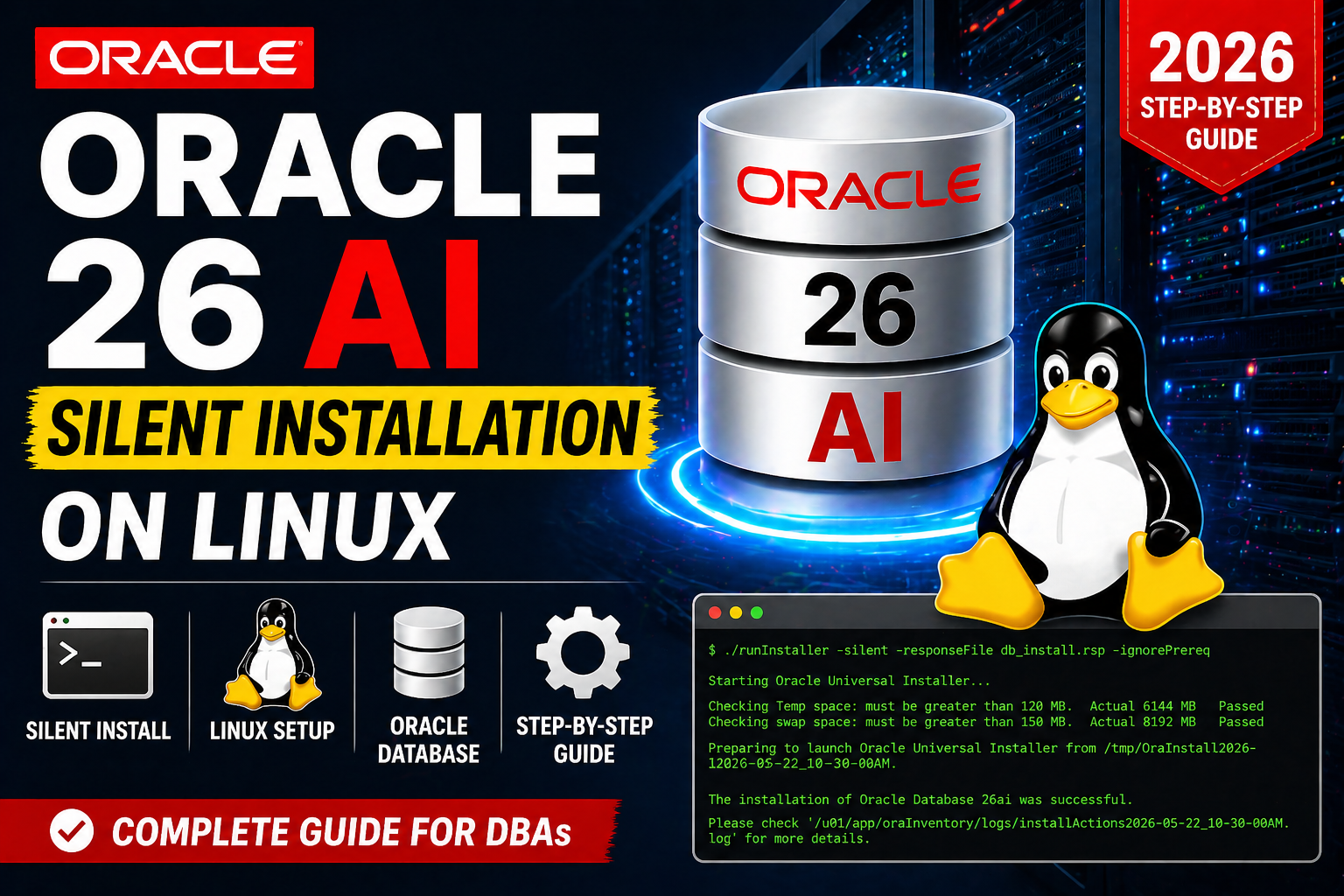
If you're an Oracle DBA, system administrator, or someone preparing for enterprise database deployments, learning Oracle 26 AI Silent Installation on Linux is a must. Silent installation is the preferred method for production environments because it is faster, repeatable, and ideal for automation.
In this guide, we will walk through the complete Oracle Database 26 AI silent installation on Linux, including prerequisites, OS configuration, response file setup, installation commands, and post-installation verification.
This tutorial is designed for Oracle Linux and RHEL users and follows production-ready best practices used by DBAs in enterprise environments.
Oracle 26 AI GUI installation on Linux
Why Use Silent Installation for Oracle 26 AI?
Unlike GUI installation, silent installation allows DBAs to install Oracle Database without a graphical interface. This is especially useful for:
- Production servers
- Remote Linux environments
- Automated deployments
- Cloud VM installations
- Data center environments
- Standardized enterprise setups
Silent installation saves time and ensures consistency across multiple servers.
System Requirements for Oracle 26 AI Installation
Before starting the installation, verify the following:
Minimum Requirements
Operating System
- Oracle Linux 8 / 9
- Red Hat Enterprise Linux (RHEL) 8 / 9
Hardware Requirements
- RAM: Minimum 8 GB (Recommended 16 GB+)
- Swap: As per RAM requirement
- Disk Space: Minimum 100 GB free
- CPU: Minimum 2 CPUs
Required Packages
Install all prerequisite packages before proceeding.
Step 1: Create Oracle Users and Groups
Login as root and run:
groupadd oinstall
groupadd dba
groupadd oper

useradd -g oinstall -G dba,oper oracle

passwd oracle
This creates the required Oracle software owner account.
Step 2: Create Oracle Directories
These directories will store Oracle binaries and inventory files.
mkdir -p /u01/app/oracle/product/26.0.0/dbhome_1
mkdir -p /u01/app/oraInventory

chown -R oracle:oinstall /u01
chmod -R 775 /u01
Step 3: Configure Kernel Parameters
Edit the file:
vi /etc/sysctl.confAdd:
fs.file-max = 6815744
kernel.sem = 250 32000 100 128
kernel.shmall = 2097152
kernel.shmmax = 8589934592
net.ipv4.ip_local_port_range = 9000 65500
fs.aio-max-nr = 1048576
Apply changes:
sysctl -pStep 4: Configure User Limits
Edit:
vi /etc/security/limits.confAdd:
oracle soft nofile 1024
oracle hard nofile 65536
oracle soft nproc 16384
oracle hard nproc 16384
oracle soft stack 10240
oracle hard stack 32768
This improves Oracle process handling and performance.
Step 5: Set Oracle Environment Variables
Login as oracle user:
su - oracleEdit:
vi ~/.bash_profileAdd:
export ORACLE_BASE=/u01/app/oracle
export ORACLE_HOME=$ORACLE_BASE/product/26.0.0/dbhome_1
export ORACLE_SID=ORCL
export PATH=$ORACLE_HOME/bin:$PATH
export LD_LIBRARY_PATH=$ORACLE_HOME/lib
export TMP=/tmp
Apply:
source ~/.bash_profileStep 6: Upload and Extract Oracle 26 AI Software
Upload the Oracle installation zip file to the server. Download link for Oracle 26 AI home binary
Example:
cd /u01/app/oracle/product/26.0.0/dbhome_1

unzip LINUX.X64_26AI_DB_HOME.zip
Make installer executable:
chmod -R 775 /u01Step 7: Prepare Silent Installation Response File
Navigate to the response file directory:
cd $ORACLE_HOME/install/responseCopy template:
cp db_install.rsp /home/oracle/db_install.rspEdit:
vi /home/oracle/db_install.rspUpdate key parameters:
oracle.install.option=INSTALL_DB_SWONLY
UNIX_GROUP_NAME=oinstall
INVENTORY_LOCATION=/u01/app/oraInventory
ORACLE_HOME=/u01/app/oracle/product/26.0.0/dbhome_1
ORACLE_BASE=/u01/app/oracle
oracle.install.db.InstallEdition=EE
oracle.install.db.OSDBA_GROUP=dba
oracle.install.db.OSOPER_GROUP=oper
DECLINE_SECURITY_UPDATES=true
This file controls the silent installation process.
Step 8: Start Oracle 26 AI Silent Installation
Run:
cd $ORACLE_HOME

./runInstaller -silent -responseFile /home/oracle/db_install.rsp -ignorePrereq
The installer will start in silent mode.
Wait until it asks for root script execution.
Step 9: Run Root Scripts
Login as root and execute:
/u01/app/oraInventory/orainstRoot.sh

/u01/app/oracle/product/26.0.0/dbhome_1/root.sh
These scripts finalize the Oracle installation.
Step 10: Verify Oracle Installation
Login again as Oracle and run:
sqlplus / as sysdbaCheck:
SELECT name FROM v$database;
SELECT banner_full FROM v$version;
This confirms the installation is successful.
Common Oracle 26 AI Installation Errors
X Display Error
Unable to verify the graphical display setupFix
Use silent installation instead of GUI mode.
Missing Package Error
Install the required RPM packages before installation.
Permission Denied Error
Verify ownership:
chown -R oracle:oinstall /u01Swap Size Error
Increase Linux swap space before installation.